
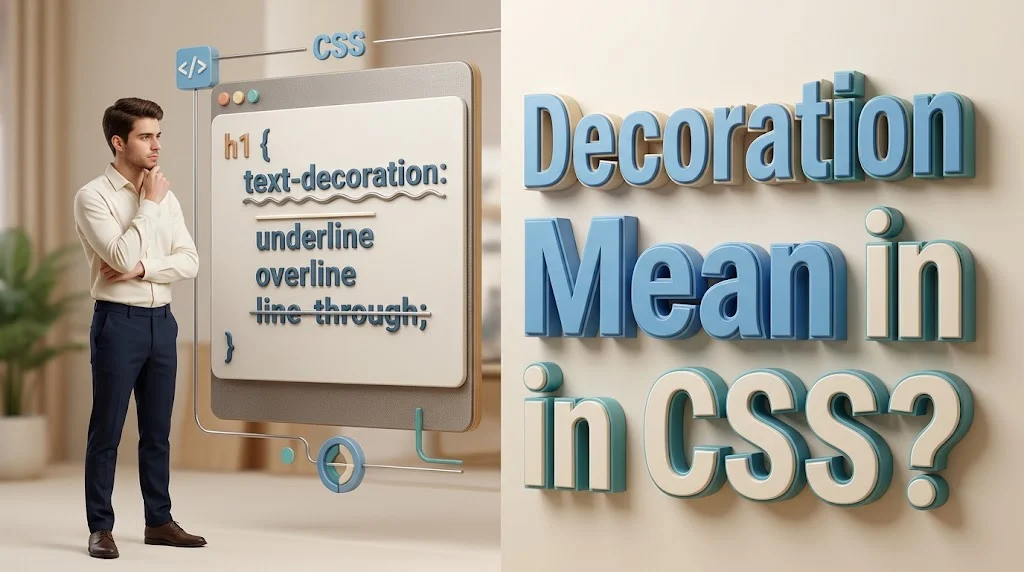
Have you ever noticed a line under a website link, a line through an old price, or a colored underline beneath an important word? These small details help people understand what they see on a web page. In CSS, the text-decoration property lets you control these lines and change how they look.
So, what does text decoration mean in CSS? In simple terms, it is a way to add decorative lines to text. You can place a line below text, above it, or through it. You can also change the line’s color, style, and thickness. Web designers use text decoration to style links, show removed prices, mark important words, and create special text effects. Beginners often confuse it with text-transform, font-style, or text-shadow. These properties do different jobs, and knowing the difference makes CSS much easier to learn.
This guide, for 2026, explains the CSS text-decoration property with clear definitions, working code, practical examples, common mistakes, exercises, and answers to frequently asked questions. You will learn how to underline text, remove link underlines, create wavy lines, apply strikethrough effects, and control decoration color and thickness.
By the end, you will know when to use each value and how to write cleaner CSS for blogs, business websites, online stores, school projects, and modern web applications.
Definition & Meaning
The CSS text-decoration property controls decorative lines added to text. You can use it to underline words, place a line above them, or draw a line through them. It also lets you set the line’s color, pattern, and thickness. For example, text-decoration: underline; adds an underline beneath text.
What does text decoration mean in simple words?
Think of text decoration as a way to draw a line around the meaning of written text without changing the letters themselves.
The browser displays the words “Learn CSS today.” with a line underneath them.
The letters stay the same. The line is a visual effect created by CSS.
What does the text-decoration property do?
The property controls four main parts of a text decoration:
- Line: Choose an underline, overline, or line through the text.
- Color: Change the color of the decorative line.
- Style: Choose a solid, double, dotted, dashed, or wavy line.
- Thickness: Make the line thinner or thicker.
Quick definition table
| CSS value or property | Simple meaning | Example use |
|---|---|---|
text-decoration | Controls text decoration | Style a link |
underline | Draws a line below text | Underlined text |
overline | Draws a line above text | Decorative heading |
line-through | Draws a line through text | Old product price |
none | Adds no decoration line | Remove a link underline |
text-decoration-color | Changes the line color | Red underline |
text-decoration-style | Changes the line pattern | Wavy underline |
text-decoration-thickness | Changes the line width | Thick underline |
text-underline-offset | Moves an underline away from or toward text | Improve spacing |
The simplest CSS example
This rule underlines the text inside paragraph elements.
To remove the underline, write:
Use the second rule carefully. It removes decorative lines from the selected paragraphs, but it does not change the text itself.
Quick tip: If you only need to add or remove a line, start with text-decoration. You do not need a separate property for every simple effect.
Why We Use Text Decoration in CSS
The CSS text-decoration property helps make text easier to scan, gives links a familiar appearance, and adds visual meaning to prices, labels, and headings. It is useful when a design needs more than plain text but does not need a change to the letters, font size, or layout.
1. To underline links
Links often use underlines because people recognize them as clickable. You can control the underline’s appearance with CSS.
This is especially useful for articles, documentation, educational websites, and text-heavy pages.
2. To remove unwanted underlines
Some designs use buttons or navigation menus without underlines.
This removes the line from links inside the navigation area. Keep enough contrast and another clear sign that the items are clickable.
3. To show old prices
Online stores often use strikethrough styling to distinguish an old price from a current sale price.
For example, an old price of $50 can appear with a line through it beside a current price of $35.
4. To highlight important words
A colored underline can draw attention to a key phrase.
Do not underline every sentence. Too many decorative lines can make a page harder to read.
5. To create a visual style
Designers can use dotted, dashed, and wavy lines for headings, labels, or special text effects.
Choose a line style that fits the page. A playful wavy underline may suit a children’s learning site but may look out of place in a formal report.
6. To improve text presentation
A suitable underline offset and thickness can help a link look balanced, especially with large fonts.
The result depends on the font and browser, so test the design at different sizes.
Does text decoration change the text?
No. Text decoration changes the way a line appears around text. It does not turn lowercase letters into uppercase letters, make text bold, or change the meaning of the words by itself.
For those tasks, use other CSS properties or suitable HTML elements.
Main Section: 60 CSS Text Decoration Examples
The following examples cover basic values, line colors, patterns, thickness, link styling, accessibility, and practical website designs. Each example includes code and explains when it is useful.
For easy testing, place a CSS rule in your stylesheet and apply its class to an HTML element.
Basic text decoration
Example 1: Underline text
Meaning: Adds a line below the text.
What it does: Text using this class appears with a line underneath it.
Sample HTML: <p class="underline">Read this note.</p>
When to use it: For links or a carefully chosen phrase that needs attention.
When not to use it: Do not underline large blocks of ordinary text if readers may mistake them for links.
Alternatives: border-bottom, a background highlight, or bold text.
Difficulty: Beginner. Tone: Neutral.
Example 2: Remove a text decoration
Meaning: Removes decorative lines applied to the selected element itself.
What it does: The selected text has no decoration line unless another applicable decoration comes from an ancestor.
Sample HTML: <a class="no-decoration" href="/about/">About us</a>
When to use it: For navigation links or custom link designs with other clear visual cues.
When not to use it: Avoid removing every link underline from a text-heavy page without another way to identify links.
Alternatives: text-decoration-line: none, a styled button, or a distinct link color.
Difficulty: Beginner. Tone: Neutral.
Example 3: Add an overline
Meaning: Places a line above the text.
What it does: A line appears over the text instead of below it.
Sample HTML: <p class="overline">Special collection</p>
When to use it: For decorative labels or selected headings.
When not to use it: Avoid using it as the only sign of a warning or important status.
Alternatives: border-top, a colored label, or a small icon.
Difficulty: Beginner. Tone: Neutral.
Example 4: Strike through text
Meaning: Draws a line through the text.
What it does: The words remain visible, but a line crosses them.
Sample HTML: <p class="strike">$50.00</p>
When to use it: For an old price or an item marked as no longer current.
When not to use it: Do not rely on the line alone to communicate important changes to all users.
Alternatives: The HTML <del> element for deleted content, a separate old-price label, or a status badge.
Difficulty: Beginner. Tone: Neutral.
Example 5: Underline and overline together
Meaning: Adds lines below and above the text.
What it does: Both decorative lines appear around the text.
Sample HTML: <p class="double-position">Featured</p>
When to use it: For special headings or decorative titles.
When not to use it: Avoid applying it to long paragraphs.
Alternatives: A border around a label, border-block, or a background color.
Difficulty: Beginner. Tone: Neutral.
Example 6: Underline, overline, and strikethrough
Meaning: Applies all three line positions.
What it does: Lines appear below, above, and through the text.
Sample HTML: <span class="all-lines">Text sample</span>
When to use it: For a demonstration or unusual visual effect.
When not to use it: Avoid it in normal body copy because it can make words hard to read.
Alternatives: One underline, a border, or a highlight.
Difficulty: Beginner. Tone: Decorative.
Example 7: Use the explicit line property
Meaning: Sets the line type with text-decoration-line.
What it does: The line position is stated separately from its color and style.
Sample HTML: <p class="explicit-underline">A clear label</p>
When to use it: When you want to control line type and other decoration settings independently.
When not to use it: It is unnecessary for a very simple underline if the shorthand is clearer.
Alternatives: text-decoration: underline or a suitable border.
Difficulty: Beginner. Tone: Neutral.
Example 8: Set no decoration line explicitly
Meaning: States that the element adds no decoration line.
What it does: The selected element does not add its own decoration line.
Sample HTML: <span class="plain-text">Plain text</span>
When to use it: When separating line control from color, style, and thickness settings.
When not to use it: Do not expect it to cancel a line already drawn by an ancestor.
Alternatives: text-decoration: none or changing the styling rule that creates the line.
Difficulty: Beginner. Tone: Neutral.
Example 9: Use the default solid underline
Meaning: Makes the underline’s line style explicit.
What it does: The underline uses a solid line rather than dots, dashes, or waves.
Sample HTML: <a class="solid-underline" href="/guide/">Read the guide</a>
When to use it: When you want a predictable, simple underline style.
When not to use it: Avoid adding extra declarations if the browser’s normal solid underline already fits the design.
Alternatives: text-decoration: underline, border-bottom, or a dotted underline.
Difficulty: Beginner. Tone: Neutral.
Example 10: Style a short heading
Meaning: Adds a simple underline to a heading.
What it does: All matching level-two headings receive an underline.
Sample HTML: <h2>Getting Started</h2>
When to use it: When underlining headings is part of a consistent design.
When not to use it: Do not apply it globally if headings could be mistaken for links or if the site already uses other heading styles.
Alternatives: border-bottom, a decorative pseudo-element, or extra spacing.
Difficulty: Beginner. Tone: Neutral.
Text decoration colors
Example 11: Red underline
Meaning: Makes the decorative line red.
What it does: The text keeps its normal text color while the underline is red.
Sample HTML: <span class="red-underline">Important detail</span>
When to use it: For a selected phrase or visual demonstration.
When not to use it: Do not use red alone to communicate an error or warning.
Alternatives: text-decoration-color: red, a red border, or an icon with a label.
Difficulty: Beginner. Tone: Neutral.
Example 12: Blue underline
Meaning: Uses blue for the line below the text.
What it does: Creates a blue underline that can complement a site’s link color.
Sample HTML: <a class="blue-underline" href="/help/">Get help</a>
When to use it: For links or highlighted terms.
When not to use it: Avoid a low-contrast line that disappears against the background.
Alternatives: A standard link underline, a border, or a distinct text color.
Difficulty: Beginner. Tone: Neutral.
Example 13: Green underline
Meaning: Sets the underline to green.
What it does: The underline appears green even if the text uses another color.
Sample HTML: <span class="green-underline">Task complete</span>
When to use it: For a design accent or a completion label paired with clear text.
When not to use it: Do not use color as the only way to show success.
Alternatives: A check icon, a status label, or a green border.
Difficulty: Beginner. Tone: Neutral.
Example 14: Purple underline
Meaning: Applies a purple decorative line.
What it does: The line appears in the chosen purple shade.
Sample HTML: <p class="purple-underline">Creative ideas</p>
When to use it: For a brand accent or a decorative heading.
When not to use it: Avoid mixing too many unrelated colors on the same page.
Alternatives: A purple background highlight, border-bottom, or a colored heading.
Difficulty: Beginner. Tone: Decorative.
Example 15: Use a hexadecimal color
Meaning: Sets the decoration color with a hex value.
What it does: The line uses the orange color represented by #ff6600.
Sample HTML: <span class="hex-underline">New feature</span>
When to use it: When matching a brand’s exact color.
When not to use it: Avoid choosing colors without checking the design’s contrast and consistency.
Alternatives: A named color, rgb(), or hsl().
Difficulty: Beginner. Tone: Neutral.
Example 16: Use an RGB color
Meaning: Defines the line color using red, green, and blue values.
What it does: The line receives the specified RGB color.
Sample HTML: <span class="rgb-underline">Notice</span>
When to use it: When your design system stores colors as RGB values.
When not to use it: Do not switch color formats without a reason if your project already follows one format.
Alternatives: Hexadecimal, named colors, or HSL.
Difficulty: Beginner. Tone: Neutral.
Example 17: Use an HSL color
Meaning: Defines the underline color with hue, saturation, and lightness.
What it does: The underline uses a blue shade defined with HSL.
Sample HTML: <span class="hsl-underline">Blue accent</span>
When to use it: When adjusting color variations in a design system.
When not to use it: Avoid choosing a value without checking how it looks against the page background.
Alternatives: RGB, hex, or a CSS custom property.
Difficulty: Intermediate. Tone: Neutral.
Example 18: Match the text color
Meaning: Uses the current text color for the decoration.
What it does: The underline follows the element’s current text color.
Sample HTML: <span class="match-color">Matching colors</span>
When to use it: When the text and line should change together with a theme.
When not to use it: Avoid it when the design specifically requires a contrasting line color.
Alternatives: A named color or a CSS custom property.
Difficulty: Intermediate. Tone: Neutral.
Example 19: Use a custom property for the line color
Meaning: Stores a reusable decoration color in a CSS variable.
What it does: Multiple components can share the same underline color.
Sample HTML: <a class="brand-underline" href="/services/">Our services</a>
When to use it: For sites with reusable brand colors or themes.
When not to use it: A custom property may be unnecessary for a single, one-off style.
Alternatives: A direct color value or a shared utility class.
Difficulty: Intermediate. Tone: Professional.
Example 20: Create a colored strikethrough
Meaning: Changes the line color without changing the text color.
What it does: A red line crosses the text.
Sample HTML: <span class="colored-strike">$80</span>
When to use it: For an old price when the surrounding design clearly explains the discount.
When not to use it: Do not make deleted or outdated text the only source of important information.
Alternatives: A semantic <del> element, a price label, or a separate old-price style.
Difficulty: Beginner. Tone: Neutral.
Text decoration styles
Example 21: Solid underline
Meaning: Uses a continuous line beneath text.
What it does: Creates a plain underline.
Sample HTML: <span class="solid-line">Standard style</span>
When to use it: For familiar links and simple emphasis.
When not to use it: Avoid overdecorating text that already has strong visual emphasis.
Alternatives: A default underline, a border, or a background highlight.
Difficulty: Beginner. Tone: Neutral.
Example 22: Double underline
Meaning: Displays two lines beneath the text.
What it does: The underline uses a double-line pattern.
Sample HTML: <span class="double-line">Special term</span>
When to use it: For a distinctive decorative effect.
When not to use it: Avoid using it for every link because it can make the page look crowded.
Alternatives: A solid underline, a bottom border, or bold text.
Difficulty: Beginner. Tone: Decorative.
Example 23: Dotted underline
Meaning: Creates an underline made of dots.
What it does: The line below the text appears dotted.
Sample HTML: <span class="dotted-line">More information</span>
When to use it: For a subtle visual treatment or a term with extra information.
When not to use it: Avoid suggesting that dotted text is clickable unless it really is.
Alternatives: A solid underline, a tooltip indicator, or a bottom border.
Difficulty: Beginner. Tone: Neutral.
Example 24: Dashed underline
Meaning: Uses short line segments beneath text.
What it does: The underline has a dashed pattern.
Sample HTML: <span class="dashed-line">Draft version</span>
When to use it: For a decorative or draft-related visual cue.
When not to use it: Do not rely on the pattern alone to explain a status.
Alternatives: A dotted underline, a dashed border, or a visible status label.
Difficulty: Beginner. Tone: Neutral.
Example 25: Wavy underline
Meaning: Creates a wave-shaped line below the text.
What it does: The underline follows a wavy pattern.
Sample HTML: <span class="wavy-line">Check this word</span>
When to use it: For playful designs or spelling-related visual examples.
When not to use it: Avoid making ordinary body text look like an error message.
Alternatives: A dotted underline, a colored highlight, or a small icon.
Difficulty: Beginner. Tone: Decorative.
Example 26: Red wavy underline
Meaning: Combines a wavy line with a red color.
What it does: A red wave appears beneath the text.
Sample HTML: <span class="red-wavy">Possible spelling issue</span>
When to use it: For a mock spelling checker or a design demonstration.
When not to use it: Do not present the decoration as proof that a word is incorrect.
Alternatives: A red dotted line, an error icon with a label, or a validation message.
Difficulty: Beginner. Tone: Neutral.
Example 27: Blue dotted underline
Meaning: Combines a blue line color with a dotted pattern.
What it does: Creates a blue dotted underline.
Sample HTML: <span class="blue-dotted">Extra details</span>
When to use it: For a restrained design accent.
When not to use it: Avoid implying a link if the text is not interactive.
Alternatives: A blue solid underline, a dotted border, or a tooltip icon.
Difficulty: Beginner. Tone: Neutral.
Example 28: Green dashed underline
Meaning: Adds a green dashed line under text.
What it does: The decoration uses green dashes.
Sample HTML: <span class="green-dashed">Step completed</span>
When to use it: For a visual accent paired with a clear completion message.
When not to use it: Do not use color and line style as the only signal for success.
Alternatives: A check mark, a status badge, or a colored border.
Difficulty: Beginner. Tone: Neutral.
Example 29: Double overline
Meaning: Places two decorative lines above the text.
What it does: A double line appears above the words.
Sample HTML: <span class="double-overline">Decorative title</span>
When to use it: For unusual title treatments or typography experiments.
When not to use it: Avoid it on long text or when the page already contains many visual effects.
Alternatives: border-top, a decorative heading element, or a background accent.
Difficulty: Beginner. Tone: Decorative.
Example 30: Dotted overline
Meaning: Adds a dotted line above the text.
What it does: The line above the words uses a dotted pattern.
Sample HTML: <span class="dotted-overline">Section label</span>
When to use it: For a decorative label or typography experiment.
When not to use it: Avoid it if the overline makes small text harder to read.
Alternatives: A dotted top border, an icon, or a background label.
Difficulty: Beginner. Tone: Decorative.
Text decoration thickness and position
Example 31: Thin underline
Meaning: Uses a specified thin line.
What it does: The underline has a thickness of one CSS pixel.
Sample HTML: <a class="thin-underline" href="/news/">Latest news</a>
When to use it: For a subtle underline.
When not to use it: Avoid a line that becomes difficult to see on high-density screens or against a similar background.
Alternatives: text-decoration-thickness: auto or a slightly thicker line.
Difficulty: Beginner. Tone: Neutral.
Example 32: Thick underline
Meaning: Creates a wider underline.
What it does: The underline is three CSS pixels thick.
Sample HTML: <span class="thick-underline">Key point</span>
When to use it: For selected phrases or bold design accents.
When not to use it: Avoid thick lines beneath long passages because they can distract readers.
Alternatives: A colored border, a background highlight, or a thinner underline.
Difficulty: Beginner. Tone: Neutral.
Example 33: Relative underline thickness
Meaning: Sets the thickness relative to the text’s font size.
What it does: The line thickness scales with the current font size.
Sample HTML: <span class="relative-underline">Scalable style</span>
When to use it: When text appears in different sizes and you want proportional decoration.
When not to use it: Avoid relative thickness if the design requires a fixed line width.
Alternatives: A fixed pixel value or auto.
Difficulty: Intermediate. Tone: Neutral.
Example 34: Let the browser choose thickness
Meaning: Uses the browser’s automatic thickness setting.
What it does: The browser chooses an appropriate line thickness.
Sample HTML: <span class="auto-underline">Natural underline</span>
When to use it: When you want the browser to select a suitable default.
When not to use it: Avoid it if a design specification requires an exact thickness.
Alternatives: from-font, 1px, or 0.1em.
Difficulty: Beginner. Tone: Neutral.
Example 35: Use the font’s suggested thickness
Meaning: Requests a thickness based on the font’s available information.
What it does: The browser uses the font’s suggested decoration thickness when available.
Sample HTML: <span class="font-thickness">Font-based line</span>
When to use it: When you want decoration that follows the font’s design.
When not to use it: Avoid relying on it for pixel-perfect consistency across different fonts.
Alternatives: auto or a fixed length.
Difficulty: Intermediate. Tone: Neutral.
Example 36: Move the underline farther down
Meaning: Adds space between the text and underline.
What it does: Moves the underline away from the text by a relative amount.
Sample HTML: <a class="spaced-underline" href="/learn/">Learn more</a>
When to use it: To make an underline easier to distinguish from letters.
When not to use it: Avoid large offsets that make the line seem unrelated to the text.
Alternatives: A border-bottom design or the default underline position.
Difficulty: Beginner. Tone: Neutral.
Example 37: Use a larger underline offset
Meaning: Increases the distance between the text and its underline.
What it does: The line sits farther below the text than in a smaller-offset example.
Sample HTML: <span class="large-offset">Readable link</span>
When to use it: For larger fonts or a style that needs extra breathing room.
When not to use it: Avoid offsets that make the line overlap other content or look detached.
Alternatives: A smaller em value or a border.
Difficulty: Beginner. Tone: Neutral.
Example 38: Combine offset and thickness
Meaning: Controls both line position and width.
What it does: Produces a two-pixel underline with extra spacing.
Sample HTML: <a class="custom-underline" href="/contact/">Contact us</a>
When to use it: For a reusable link style.
When not to use it: Avoid changing both settings without testing the actual font.
Alternatives: A standard underline or a bottom border.
Difficulty: Beginner. Tone: Professional.
Example 39: Underline a large heading
Meaning: Applies a thick line beneath a heading.
What it does: The line thickness and position relate to the heading’s font size.
Sample HTML: <h2 class="large-heading">Our Services</h2>
When to use it: For headings that need a clear visual accent.
When not to use it: Avoid making every heading compete for attention.
Alternatives: border-bottom, a pseudo-element, or a background accent.
Difficulty: Intermediate. Tone: Professional.
Example 40: Create a responsive underline
Meaning: Uses relative units to adapt the underline to changing text sizes.
What it does: The text size changes within set limits, while the underline thickness scales with it.
Sample HTML: <span class="responsive-underline">Responsive text</span>
When to use it: For fluid headings or interface labels.
When not to use it: Avoid adding responsive sizing when the text should remain at a fixed size.
Alternatives: Fixed font sizes with px, rem, or a simple relative underline.
Difficulty: Intermediate. Tone: Professional.
Links and interactive text
Example 41: Underline all links
Meaning: Adds underlines to all anchor elements.
What it does: Links receive an underline unless another rule overrides it.
Sample HTML: <a href="/about/">About</a>
When to use it: On content-focused sites where clear link identification matters.
When not to use it: Do not apply it blindly if some anchors serve as icons or styled controls that need separate rules.
Alternatives: A scoped link selector or a shared link class.
Difficulty: Beginner. Tone: Neutral.
Example 42: Remove underlines from navigation links
Meaning: Removes decoration from links inside a navigation area.
What it does: Only links inside .site-nav lose their own underline.
Sample HTML: <nav class="site-nav"><a href="/">Home</a></nav>
When to use it: For menus with clear hover, focus, and active states.
When not to use it: Avoid removing underlines from article links with no other visible cue.
Alternatives: Keep underlines or add a distinct background or border state.
Difficulty: Beginner. Tone: Professional.
Example 43: Underline a link on hover
Meaning: Shows an underline when the pointer is over a link.
What it does: The line appears when a mouse or other pointing device hovers over the link.
Sample HTML: <a class="hover-link" href="/blog/">Read our blog</a>
When to use it: For visual feedback on links.
When not to use it: Do not make hover the only way users can tell that text is a link. Touchscreens may not support hover in the same way.
Alternatives: Keep a permanent underline or add a clear focus style.
Difficulty: Beginner. Tone: Professional.
Example 44: Add an underline on keyboard focus
Meaning: Shows an underline when a link receives keyboard focus.
What it does: Keyboard users get an additional visual cue when navigating to the link.
Sample HTML: <a class="focus-link" href="/support/">Support</a>
When to use it: For accessible interactive interfaces.
When not to use it: Do not remove the browser’s focus outline unless you replace it with a clear, accessible alternative.
Alternatives: A visible outline, a background change, or an underline combined with an outline.
Difficulty: Intermediate. Tone: Professional.
Example 45: Style a visited link
Meaning: Changes a visited link’s underline color.
What it does: A visited link can use a different underline color, subject to browser privacy restrictions on visited-link styling.
Sample HTML: <a class="visited-link" href="/resources/">Resources</a>
When to use it: For long lists of links where visited status is useful.
When not to use it: Avoid making visited links hard to distinguish or relying on color alone.
Alternatives: A visited text color, a permanent underline, or a subtle additional cue.
Difficulty: Intermediate. Tone: Neutral.
Example 46: Underline links in article content only
Meaning: Targets links inside an article rather than every link on the site.
What it does: Article links receive an underline and some extra spacing.
Sample HTML: <div class="article-content"><a href="/css/">CSS guide</a></div>
When to use it: When navigation and article links need different styles.
When not to use it: Avoid using a selector that does not match your actual HTML structure.
Alternatives: A dedicated .content-link class or a more specific content selector.
Difficulty: Beginner. Tone: Professional.
Example 47: Underline a button label
Meaning: Applies an underline to text inside a button.
What it does: The label gets a line, but the button’s behavior does not change.
Sample HTML: <button type="button"><span class="button-label">View details</span></button>
When to use it: For a deliberate visual style or a special text treatment.
When not to use it: Avoid styling a button so it looks like a normal text link if that could confuse users.
Alternatives: A border, a stronger font weight, or a background change.
Difficulty: Beginner. Tone: Neutral.
Example 48: Underline a navigation item on hover
Meaning: Adds an underline when a navigation link is hovered over.
What it does: A navigation link receives an underline and extra spacing during hover.
Sample HTML: <nav class="site-nav"><a href="/products/">Products</a></nav>
When to use it: To give users feedback while browsing a menu.
When not to use it: Do not rely on hover alone to show the current page or keyboard focus.
Alternatives: An active-page indicator, a border, or a background state.
Difficulty: Beginner. Tone: Professional.
Example 49: Style a footer link
Meaning: Gives footer links a clear underline.
What it does: Links in the footer receive a consistent decoration.
Sample HTML: <footer class="site-footer"><a href="/privacy/">Privacy policy</a></footer>
When to use it: For legal links, contact details, and supporting navigation.
When not to use it: Avoid low-contrast lines on dark footer backgrounds.
Alternatives: A contrasting link color, a border-bottom, or a stronger focus style.
Difficulty: Beginner. Tone: Professional.
Example 50: Create a link with a colored underline
Meaning: Keeps the text and underline colors separate.
What it does: The text stays dark while the underline uses a teal accent.
Sample HTML: <a class="colored-link" href="/learn/">Learn CSS</a>
When to use it: When the design calls for a subtle brand-colored link.
When not to use it: Do not use a color combination that makes the underline hard to see.
Alternatives: A matching text and line color, a bottom border, or a background highlight.
Difficulty: Beginner. Tone: Professional.
Practical, semantic, and advanced examples
Example 51: Mark deleted text with HTML
Meaning: Uses semantic HTML to identify removed content.
What it does: The deleted price receives a strikethrough, and the HTML communicates that the content has been removed.
When to use it: For edits, revisions, and old values that are genuinely deleted.
When not to use it: Do not use <del> only because you want a decorative line through unrelated text.
Alternatives: A styled <span> for decoration alone or <s> for content that is no longer accurate or relevant.
Difficulty: Intermediate. Tone: Neutral.
Example 52: Mark text that is no longer accurate
Meaning: Uses the HTML <s> element for content that is no longer correct or relevant.
What it does: The old statement appears crossed out, and the new statement follows it.
When to use it: For outdated information that remains useful for context.
When not to use it: Do not use <s> for content that has been deleted as part of an edit; consider <del> instead.
Alternatives: A status label, an update note, or <del> where deletion is the correct meaning.
Difficulty: Intermediate. Tone: Neutral.
Example 53: Use a custom underline color through a variable
Meaning: Reuses a shared CSS variable for underline styling.
What it does: The accent color can be changed in one place and reused across multiple elements.
Sample HTML: <a class="accent-link" href="/features/">Features</a>
When to use it: For a theme or a website with many links.
When not to use it: Avoid creating a variable for a value used only once unless it improves clarity.
Alternatives: A direct hex color or a shared design token.
Difficulty: Intermediate. Tone: Professional.
Example 54: Apply multiple decoration values in shorthand
Meaning: Combines the line, pattern, color, and thickness in one declaration.
What it does: Creates a two-pixel wavy red underline.
Sample HTML: <span class="shorthand-example">Special notice</span>
When to use it: When a single rule is easier to read than several longhand properties.
When not to use it: Avoid shorthand if a team prefers separate properties for clarity or if you need to override individual parts later.
Alternatives: text-decoration-line, text-decoration-style, text-decoration-color, and text-decoration-thickness.
Difficulty: Intermediate. Tone: Professional.
Example 55: Use separate properties for clarity
Meaning: Controls each part of the decoration independently.
What it does: Produces a blue dotted underline with a thickness of two pixels.
Sample HTML: <span class="separate-properties">Extra information</span>
When to use it: When individual properties need to be adjusted or reviewed separately.
When not to use it: Avoid repeating long declarations for many elements when a shared class would be simpler.
Alternatives: The text-decoration shorthand or a reusable utility class.
Difficulty: Intermediate. Tone: Professional.
Example 56: Style a product’s old price
Meaning: Distinguishes the old price from the current price.
What it does: The old price is crossed out, and the new price stands out.
When to use it: For genuine discounts where both prices are accurate.
When not to use it: Do not show misleading reference prices or rely on color alone to explain the offer.
Alternatives: An explicit “Was” and “Now” label or a sale badge.
Difficulty: Intermediate. Tone: Professional.
Example 57: Underline a keyword in an article
Meaning: Adds an underline to a selected term in a paragraph.
What it does: A chosen word receives a teal underline.
Sample HTML: <p>Learn the <span class="keyword">CSS basics</span> first.</p>
When to use it: For limited visual emphasis when the meaning is clear from context.
When not to use it: Do not underline every SEO keyword. Search engines do not require decorative underlines for keyword relevance.
Alternatives: Bold text, a short callout, or a heading.
Difficulty: Beginner. Tone: Neutral.
Example 58: Style text inside a card
Meaning: Applies decoration to a specific component.
What it does: The card title gets a colored underline with extra spacing.
Sample HTML: <h3 class="card-title">Beginner CSS Course</h3>
When to use it: For cards that need a consistent title treatment.
When not to use it: Avoid making a non-clickable title look like a link if that may confuse users.
Alternatives: A bottom border, a decorative pseudo-element, or a background accent.
Difficulty: Intermediate. Tone: Professional.
Example 59: Avoid decoration conflicts with inherited text
Meaning: Shows why a child element cannot always remove a parent’s text decoration.
What it does: The paragraph’s underline can still pass beneath the child text. The child’s none does not erase the line drawn by the ancestor.
When to use it: When debugging unexpected underlines in nested HTML.
When not to use it: Do not keep adding text-decoration: none to child elements when the line originates from a parent.
Alternatives: Remove the decoration from the parent or restructure the markup so only the intended text receives the line.
Difficulty: Intermediate. Tone: Technical.
Example 60: Create a reusable link style with focus support
Meaning: Combines a clear default underline with keyboard feedback.
What it does: Links have a visible underline, a stronger underline on hover, and an outline during keyboard focus.
Sample HTML: <a class="content-link" href="/css-guide/">Read the CSS guide</a>
When to use it: For article links and other reusable text links.
When not to use it: Avoid using the same style for every interface component if buttons and navigation require different visual treatment.
Alternatives: A shared link component, a design-system utility class, or a carefully tested theme style.
Difficulty: Intermediate. Tone: Professional.
Pro tip: Test examples in a real browser
The line’s appearance can vary with font metrics, font size, browser rendering, and the surrounding styles. Test your CSS with the actual font and page layout rather than judging it from the declaration alone.
Quick Reference Table
The table below summarizes all 60 examples so you can find the right CSS technique without reading every explanation again.
| No. | Example | Main CSS technique | Common use |
|---|---|---|---|
| 1 | Underline text | text-decoration: underline | Basic emphasis |
| 2 | Remove decoration | text-decoration: none | Navigation links |
| 3 | Overline text | text-decoration: overline | Decorative label |
| 4 | Strikethrough | text-decoration: line-through | Old price |
| 5 | Underline and overline | underline overline | Special heading |
| 6 | Three line positions | underline overline line-through | Demonstration |
| 7 | Explicit underline | text-decoration-line | Independent line control |
| 8 | No decoration line | text-decoration-line: none | Explicit line reset |
| 9 | Solid underline | underline solid | Standard link |
| 10 | Heading underline | h2 { text-decoration: underline; } | Heading style |
| 11 | Red underline | underline red | Highlight |
| 12 | Blue underline | text-decoration-color | Link styling |
| 13 | Green underline | underline green | Completion accent |
| 14 | Purple underline | Hex color | Brand styling |
| 15 | Hex color | #ff6600 | Exact color match |
| 16 | RGB color | rgb() | Color systems |
| 17 | HSL color | hsl() | Color variations |
| 18 | Match text color | currentColor | Consistent theme |
| 19 | CSS variable | var(--link-underline) | Reusable colors |
| 20 | Colored strikethrough | text-decoration-color | Old price |
| 21 | Solid line style | solid | Standard underline |
| 22 | Double underline | double | Decorative emphasis |
| 23 | Dotted underline | dotted | Subtle accent |
| 24 | Dashed underline | dashed | Draft-style accent |
| 25 | Wavy underline | wavy | Special effect |
| 26 | Red wavy underline | wavy red | Error-style demo |
| 27 | Blue dotted underline | dotted #1769aa | Extra information |
| 28 | Green dashed underline | dashed green | Status accent |
| 29 | Double overline | overline double | Decorative title |
| 30 | Dotted overline | overline dotted | Label styling |
| 31 | Thin underline | 1px thickness | Subtle link |
| 32 | Thick underline | 3px thickness | Strong emphasis |
| 33 | Relative thickness | 0.12em | Scalable design |
| 34 | Automatic thickness | auto | Browser default |
| 35 | Font-based thickness | from-font | Font-aware style |
| 36 | Small offset | 0.2em | Improve spacing |
| 37 | Larger offset | 0.35em | Large text |
| 38 | Offset and thickness | Two properties | Reusable link |
| 39 | Heading decoration | Relative thickness | Large headings |
| 40 | Responsive underline | clamp() and em | Fluid text |
| 41 | Underline all links | a selector | Content websites |
| 42 | Navigation links | .site-nav a | Menus |
| 43 | Hover underline | :hover | Pointer feedback |
| 44 | Keyboard focus | :focus-visible | Accessibility |
| 45 | Visited link | :visited | Link history |
| 46 | Article links | .article-content a | Blog content |
| 47 | Button label | Nested span | Custom button |
| 48 | Navigation hover | Scoped hover rule | Menu feedback |
| 49 | Footer link | .site-footer a | Footer navigation |
| 50 | Colored link | Text and line colors | Brand styling |
| 51 | Deleted content | HTML <del> | Edited text |
| 52 | Outdated content | HTML <s> | Old information |
| 53 | Shared color variable | CSS custom property | Theme consistency |
| 54 | Shorthand declaration | text-decoration | Concise CSS |
| 55 | Longhand properties | Four individual properties | Fine control |
| 56 | Old product price | <del> and CSS | Sale pricing |
| 57 | Article keyword | Reusable class | Limited emphasis |
| 58 | Card title | Decoration and offset | Component styling |
| 59 | Parent decoration | Nested HTML | Debugging |
| 60 | Accessible link style | Underline and focus outline | Production links |
Quick takeaway: Most beginner projects only need underline, none, and line-through. Add color, style, thickness, and offset when the design has a clear reason for them.
Real-Life Conversations
Text decoration is a coding feature, so people usually discuss it while building or fixing a website. These conversations show how developers use the property in everyday work.
Conversation 1: Two friends learning CSS
Mia: Why does this link have a line under it?
Leo: That’s an underline. CSS can add it with text-decoration: underline;.
Mia: Can I remove it?
Leo: Yes. Try text-decoration: none;.
Mia: Will that change the link?
Leo: It only removes the decoration line. The link still works, but make sure it still looks clickable.
Conversation 2: A student asks a teacher
Student: What does text decoration mean in CSS?
Teacher: It controls lines added to text, such as underlines and strikethroughs.
Student: Is it the same as making text bold?
Teacher: No. Bold text uses font-weight. Text decoration controls the decorative line.
Student: Can I change the line color?
Teacher: Yes. Use text-decoration-color, or include a color in the shorthand.
Conversation 3: A web designer and a client
Client: Can we make the old product price look different from the sale price?
Designer: Yes. I’ll use a strikethrough for the old price and make the new price stand out.
Client: Will customers understand the difference?
Designer: I’ll also label the prices clearly. The line will support the message rather than carry it alone.
Conversation 4: A developer fixing a link
Developer 1: I set text-decoration: none, but the word still has an underline.
Developer 2: Is the parent paragraph underlined?
Developer 1: Yes, it is.
Developer 2: That explains it. The parent’s decoration can continue through its child text. Remove the underline from the parent or change the HTML structure.
Conversation 5: A team reviewing a website
Designer: The links look a little hard to read.
Developer: I can add an underline and move it slightly away from the text.
Designer: What about keyboard users?
Developer: I’ll keep the underline visible and add a clear focus outline. That way, people can find links with a keyboard, too.
Everyday Usage
CSS text decoration appears across websites, from simple school projects to large online stores. Its purpose depends on the page and the meaning of the text. A good rule is to choose a decoration that helps users understand the content instead of adding lines only to make the page look busy.
1. In website conversations
Developers may say:
- “Add an underline to this link.”
- “Remove the default text decoration.”
- “Make the old price a strikethrough.”
- “Move the underline down a little.”
- “Use a dotted line for this example.”
These phrases describe visual changes to the page, not changes to the words themselves.
2. In writing and online articles
A blog may use underlined links to help readers find related information.
This rule targets links inside the article content, rather than every link on the website.
Practical tip: Use clear link text. “Read our CSS beginner guide” tells readers more than “click here.”
3. In books and digital reading
Electronic books, learning platforms, and online documents can use underlines to identify links or highlight selected text. However, the correct styling depends on the reading system.
For meaningful emphasis in prose, use headings, clear wording, or suitable semantic markup when needed. Do not depend on a decorative line to communicate a critical instruction.
4. In movies and creative websites
Film websites may use text decoration in titles, promotional labels, or interactive menus. A designer might add a wavy underline to a playful heading or a solid underline to a navigation link.
The line should support the site’s visual style without making the words difficult to read.
5. In poetry and creative typography
A poetry website might use an overline or double underline as an artistic effect.
Use unusual decoration sparingly. In poetry, spacing, line breaks, and font choice often matter more than decorative lines.
6. In emails and professional communication
HTML emails can use CSS text decoration, although email clients may support styles differently.
For important links, keep the wording clear and the styling recognizable. Test the email in the clients your audience uses.
7. In text messages and social media
Instagram, Facebook, X, and LinkedIn posts do not normally let users apply arbitrary CSS to ordinary post text. The text-decoration property applies when you control a web page or a supported HTML interface, not simply because you type CSS into a social media post.
If you build a social media website or an embedded web component, CSS can style its text where you control the relevant HTML and styles.
8. In school assignments
Students can use text decoration in HTML and CSS exercises to learn how styling works.
The example is simple enough for a beginner to test and change.
9. In online stores
An online store can use a strikethrough to show a previous price and display the current price beside it.
Make sure the prices and their labels remain clear even if decorative styling is unavailable.
10. In professional web applications
Dashboards and business applications can use text decoration for links, revision histories, and selected statuses. For example, a document editor might show removed words with a strikethrough.
When the decoration represents a meaningful change, use the appropriate HTML element as well as the visual style.
Writing Tips
Good text decoration is clear, consistent, and easy to understand. Choose a line based on what it communicates, keep the design readable, and test it in the actual page. The same CSS rule can look very different in a small label, a large heading, or a long paragraph.
Best situations for text decoration
Use text-decoration when you need to:
- Underline a link.
- Show an old price or removed text.
- Add a small decorative line to a heading.
- Change the color or pattern of an underline.
- Adjust the thickness or spacing of a line.
Avoid using it as a substitute for a clear heading, a proper button, or a meaningful HTML element.
Formal versus informal design
CSS itself does not have a formal or informal tone. The visual style can, however, affect how a page feels.
- Professional: Simple solid underlines, restrained colors, and consistent spacing.
- Casual: Dotted or wavy lines used for selected labels.
- Decorative: Double lines and combined line positions used sparingly.
- Functional: Clear underlines and focus indicators that help users navigate.
Pick a style that fits the audience and purpose of the website.
Speaking versus writing
When talking about CSS, say “underline the link,” “remove the underline,” or “add a strikethrough.” In code, use the property and value that match the intended effect.
For example:
- Spoken instruction: “Add a blue underline.”
- CSS implementation:
text-decoration: underline blue;
The instruction describes the result; the CSS declaration tells the browser how to create it.
British versus American usage
The property name text-decoration is the same in British and American English. CSS keywords such as underline, overline, and line-through do not change with regional spelling.
Documentation may use different regional spellings in its prose, but the CSS syntax remains the same.
Children versus adults
For beginners of any age, start with three values:
underlinenoneline-through
Then introduce color, style, thickness, and offset. Short examples are easier to test and understand than long rules with many properties.
Professional communication
When describing a change to a developer, state the desired result and its purpose.
Instead of saying, “Make the text look better,” say, “Keep the article links underlined and increase the underline offset slightly.”
This gives the developer a clear goal and makes the change easier to review.
Creative writing and web design
Creative websites can use text decoration to add personality, but decoration should not compete with the words. Use wavy or double lines for a small number of elements and keep ordinary text simple.
If you want a decorative line that extends across an entire heading or container, a CSS border or pseudo-element may offer better control than text decoration.
Common Mistakes
Most text-decoration problems come from using the wrong property, applying a rule to the wrong element, or expecting one element to cancel a line drawn by another. Understanding these differences helps you fix CSS faster and avoid confusing visual effects.
| Mistake | Reason | Correct version | Practical explanation |
|---|---|---|---|
Using text-decoration: bold | bold is not a text-decoration value | font-weight: bold; | Font weight controls bold text. |
Using text-decoration: italic | Italics are controlled by another property | font-style: italic; | Decoration adds lines, not italics. |
Writing text-decoration: underline; to change the text color | Underline does not set the text color | color: blue; | Use color for the letters. |
Using text-decoration-color without a line | A color alone does not create a visible line | text-decoration: underline red; | Choose a line and its color. |
Expecting none on a child to erase a parent’s underline | Parent decorations can pass through descendant text | Remove the parent’s decoration | Fix the rule where the line originates. |
| Removing all link underlines without another cue | Users may not recognize links | Keep underlines or add another clear cue | Links should remain easy to identify. |
Using border-bottom as if it were identical to an underline | Borders belong to element boxes | Use text-decoration for text-following lines | The two techniques have different layout behavior. |
Writing text-decoration: wavy; | The line position is missing | text-decoration: underline wavy; | Specify the line type and style. |
Using text-decoration-width | This is not the current standard property name | text-decoration-thickness: 2px; | Use the modern property name. |
| Using color as the only status cue | Some users cannot distinguish the color | Add text or an icon | Meaning should not depend on color alone. |
| Underlining every keyword in an article | Too many lines create visual noise | Underline links and selected phrases only | Emphasis works best when used sparingly. |
| Expecting hover styling to work the same on touchscreens | Touch devices do not use hover like a mouse | Keep essential cues visible by default | Make interaction clear on different devices. |
| Applying a global heading underline without checking the design | The rule may affect every heading | Use a specific class or selector | Scope the effect to the right elements. |
Using <del> only for decoration | The element carries a meaning of deleted content | Use a styled <span> for decoration alone | HTML should match the content’s meaning. |
| Forgetting keyboard focus | Keyboard users may lose track of links | Add a visible :focus-visible style | Focus feedback supports navigation. |
Practice Exercise
These exercises help you turn a plain instruction into a CSS declaration. Try writing the code before checking the answers. The goal is to understand which property controls the line, rather than memorizing a long list of examples.
Answer key
| Question | Answer | Explanation |
|---|---|---|
| 1 | B | The property controls decorative lines on text. |
| 2 | C | underline places a line below the text. |
| 3 | B | text-decoration: none removes the element’s own decoration line. |
| 4 | A | line-through draws a line through text. |
| 5 | C | text-decoration-color sets the line color. |
| 6 | A | Combine underline with wavy. |
| 7 | B | text-decoration-thickness sets the line thickness. |
| 8 | D | It adjusts the position of an underline. |
| 9 | B | <del> represents deleted content. |
| 10 | C | Clear link cues and visible keyboard focus help users navigate. |
FAQs
These frequently asked questions cover the most useful details about CSS text decoration, from the basic meaning to the difference between underlines, borders, and related properties.
1. What does text decoration mean in CSS?
Text decoration in CSS means adding visual lines to text. The text-decoration property can create an underline below words, an overline above them, or a strikethrough through them. It can also control the line’s color, style, and thickness. Developers use it for links, old prices, selected text, and other visual effects.
2. What is the default value of text-decoration?
The default line decoration is none, which means an element does not add a decoration line by default. However, links commonly have underlines because browsers apply default link styles. If a link appears underlined, inspect its browser defaults and stylesheet before assuming that every text element has an underline.
3. How do I underline text in CSS?
Use text-decoration: underline; on the element you want to style. For example, .highlight { text-decoration: underline; } adds an underline to elements with the highlight class. You can also set text-decoration-color, text-decoration-style, and text-decoration-thickness to control the line’s appearance.
4. How do I remove an underline from a link in CSS?
Use a { text-decoration: none; } to remove the underline from all links, or use a more specific selector to target only certain links. Keep in mind that underlines help people recognize clickable text. If you remove them, make sure the links remain easy to identify through clear styling and interaction cues.
5. What is the difference between text-decoration and text-transform?
text-decoration controls decorative lines, such as underlines and strikethroughs. text-transform changes how letters appear, such as converting text to uppercase or lowercase. For example, text-decoration: underline; adds a line, while text-transform: uppercase; displays letters in uppercase without changing the original text content.
6. How do I change the color of an underline in CSS?
Use text-decoration-color to change the line color. For example, a { text-decoration: underline; text-decoration-color: red; } creates a red underline. You can use named colors, hexadecimal values, RGB, HSL, or CSS custom properties. Choose a color that fits your design and remains easy to see against the background.
7. Can I use multiple text-decoration values together?
Yes. You can combine line positions and style values in a single declaration. For example, text-decoration: underline overline; adds lines above and below the text, while text-decoration: underline wavy blue; creates a blue wavy underline. You can also set the color and thickness using separate properties when you need more control.
8. Why does text-decoration: none not remove an underline?
The underline may come from an ancestor element. CSS text decorations are drawn across descendant text, so setting text-decoration: none on a child does not erase a line drawn by its parent. Inspect the surrounding HTML and remove or change the rule on the element that creates the decoration.
9. Is text-decoration better than border-bottom?
Neither is always better. text-decoration is designed for lines associated with text, while border-bottom draws a border along an element’s box. Use text decoration for link underlines and text effects. Use a border when you need more control over a component’s edge, spacing, or full-width divider.
10. Does text-decoration affect SEO?
The property is a visual styling tool and is not a direct ranking shortcut. Underlining keywords does not automatically improve rankings. Use descriptive headings, helpful content, meaningful links, semantic HTML, and good page structure. Text decoration can support usability, but it should not replace useful content or clear navigation.
Related Terms
CSS text decoration works alongside several other properties and HTML elements. Knowing their differences helps you choose the right tool instead of forcing text-decoration to do a job it was not designed for.
| Term | What it does | How it differs from text-decoration |
|---|---|---|
text-decoration | Adds lines to text | Controls underlines, overlines, and strikethroughs |
text-transform | Changes the displayed letter case | Controls uppercase, lowercase, and capitalization |
font-style | Sets normal, italic, or oblique text | Changes the style of the letters |
font-weight | Controls font weight | Makes text lighter or bolder |
color | Sets the text color | Changes the letters, not just the decoration line |
text-shadow | Adds a shadow to text | Creates a shadow effect rather than a line |
border-bottom | Draws a border at the bottom of an element | Belongs to the element’s box, not the text decoration system |
background-color | Adds a background color | Highlights an area behind text |
text-underline-offset | Adjusts underline position | Controls spacing between text and its underline |
text-decoration-thickness | Sets line thickness | Controls how wide the decoration stroke appears |
text-decoration-style | Sets the line pattern | Controls solid, double, dotted, dashed, or wavy lines |
text-decoration-color | Sets the line color | Changes the decorative line’s color |
HTML <del> | Marks deleted content | Gives the content semantic meaning as well as a common strikethrough presentation |
HTML <s> | Marks content that is no longer accurate or relevant | Identifies outdated content rather than simply applying a decorative effect |
HTML <u> | Marks text with a non-textual annotation | Has semantic meaning and commonly appears underlined |
HTML <ins> | Marks inserted content | Identifies added content; its default presentation often includes an underline |
Text decoration versus text-transform
These two properties are easy to confuse because both affect how text appears.
The first adds a line below the words. The second changes the displayed letters to uppercase. You can apply both to the same element if the design requires it.
Text decoration versus font-style
font-style controls whether text appears normal, italic, or oblique. It does not create an underline.
Use each property for its own purpose. This makes your CSS easier to understand and maintain.
Text decoration versus border-bottom
A bottom border is often used to create a line under a heading or menu item.
A border follows the element’s box, while a text decoration follows the text. Borders also offer different control over width, padding, and layout. If you want a line that spans the full width of a heading container, a border may be a better fit.
Text decoration versus HTML
The HTML <u> element marks text with a non-textual annotation, and browsers commonly display it with an underline. The CSS property changes the visual treatment of text. Choose HTML based on meaning and CSS based on presentation.
For a purely decorative underline, a CSS class may be the clearer choice. For annotated text, use appropriate semantic markup and make sure the meaning is understandable.
Internal Linking: 8 Related Article Ideas
Use these topics to build a helpful CSS learning section on your WordPress site. Link to them where they naturally answer a reader’s next question.
| Suggested article title | Suggested slug | Suggested anchor text |
|---|---|---|
| CSS Text Color: A Beginner’s Guide | css-text-color | change text color in CSS |
| How to Change Font Size in CSS | change-font-size-css | change font size in CSS |
| CSS Font Weight Explained | css-font-weight | learn CSS font weight |
| CSS Text Transform with Examples | css-text-transform | use text-transform in CSS |
| CSS Borders: Properties and Examples | css-border-property | learn CSS borders |
| How to Style Links in CSS | style-links-css | style links with CSS |
| CSS Hover Effects for Beginners | css-hover-effects | create CSS hover effects |
HTML <del>, <ins>, <s>, and <u> Explained | html-text-semantic-elements | learn HTML text elements |
Final Thoughts
The CSS text-decoration property gives you a simple way to control lines around text. You can underline links, add overlines, create strikethroughs, and change a line’s color, pattern, thickness, and position. Most beginners can start with underline, none, and line-through before moving on to more advanced styling.
If you remember one thing, remember this: text-decoration changes the lines around text, not the letters themselves. Practice with a few values, inspect the result in your browser, and build up to more detailed styles as your CSS skills grow.
The best results come from using decoration with a clear purpose. Keep links easy to recognize, use semantic HTML when a line represents deleted or outdated content, and test your styles with real text and different screen sizes.
Discover more post
What Does That’s WSP Mean in Text? 2026
What Does GNLY Mean in Text? 2026
What Do TS Mean in a Text Message? 2026

Zio Claruk ek professional content writer, English language educator, aur SEO specialist hain jo metasparik.com ke liye high-quality, user-friendly aur search-optimized content create karte hain. Unka focus simple English learning, literary devices, metaphors, similes, idioms, vocabulary building, aur practical writing guides par hota hai.